Your First Project
Create three elements, two relationships, and one saved architecture View
Build a small answer to one question: how does an order reach payment authorization? Your result will be a saved diagram you can reopen and explain.
You need: permission to create a project and edit its selected version. You do not need AI, a deployment, a Behavior Model, or a complete inventory of your code.
1. Create the project
Open Projects → New project. Name it Order architecture and describe it as “How a customer order reaches payment authorization.” Create the project, then check the working version shown in its header.
2. Add three elements
Open Model → Systems and choose Add Element to add these top-level Systems. Leave them without a parent for this first diagram.
| Name | Responsibility |
|---|---|
| Customer App | Accept a dinner order from a customer |
| Ordering | Coordinate the order and request payment authorization |
| Payments | Authorize or decline the payment |
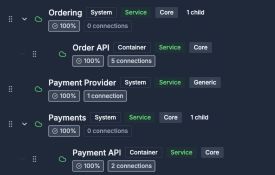
Systems is the model inventory. QuickBite shows a fuller example; your first project only needs the three elements above.
Open image separatelyUse the names in the table so you can find the same elements in the next step. Add Containers inside a System later when you need to explain its internal structure.
3. Connect them
Open Model → Relationships and create two directed relationships:
| From | To | Name |
|---|---|---|
| Customer App | Ordering | Place an order |
| Ordering | Payments | Authorize payment |
Use a description to explain what each request does. Record technology and interaction details when you know them; avoid inventing implementation evidence.
Check: the arrows follow the request direction. You have three elements and two relationships, with no duplicate Payments element.
4. Save a focused View
Open Documentation → Views, choose Create View, name it Order to payment, and open its editor. Add the three existing elements to the canvas, arrange them from Customer App to Ordering to Payments, and inspect the relationships.
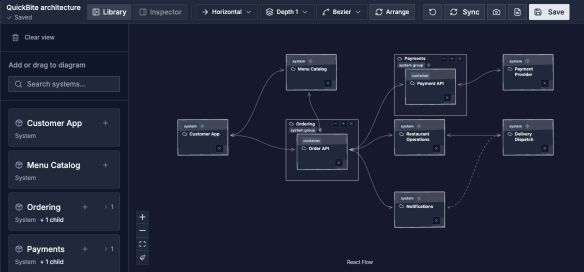
A View arranges existing model elements for one audience. Moving an element here changes this View's presentation.
- 1Choose the existing elements needed for your question.
- 2Arrange them into a readable flow.
- 3Choose Save and wait for the saved confirmation before leaving.
Choose Save. Leave the editor and reopen the View to confirm its arrangement was preserved. See the View editor if you need help with element selection or layout.
Your result: a small model and a saved visual explaining the order-to-payment dependency. This is already a useful first project.
Add the next detail when you need it
- To show approval and rejection paths, map a workflow.
- To explain the reasoning, create a document.
- To prepare it for readers, share a review.
If you are unsure where something belongs, use Key concepts. If editing or saving is unavailable, start with Troubleshooting.