Quickstart: Follow an Order
A five-minute investigation with the QuickBite sample, without AI setup
By the end, you will be able to explain where a new dinner order depends on payment authorization and point to the model evidence behind that explanation.
You need: a signed-in Archflow account. The sample provides the model. AI setup is optional.
1. Open the sample
Choose Explore Archflow in the global sidebar. Under QuickBite, expand Follow the dinner order and choose Follow an order. This prepares your sample if needed and opens the guide at the first task. You can use the same chapter to revisit it later.
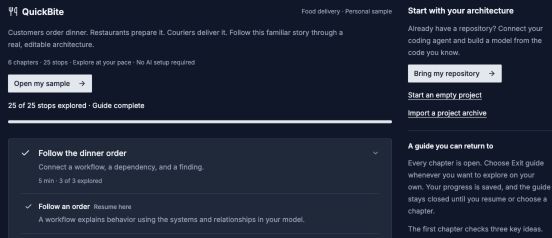
Explore Archflow is your entry point. An existing sample shows Open my sample; your progress may differ.
Open image separatelyThe guide appears above the project. Choose Open the order workflow. It opens From order to doorstep in the sample's version.
2. Follow the payment branch
Find Authorize payment in the workflow and select it. Follow the two outgoing paths:
- Approved continues to Confirm paid order.
- Declined goes to Reject declined payment.
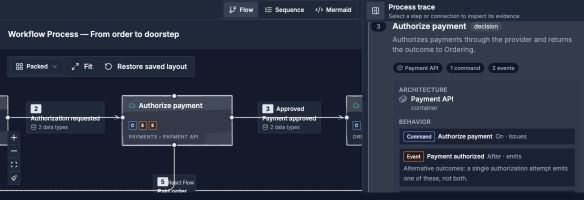
A focused excerpt: select Authorize payment to inspect the step and its supporting evidence.
- 1Select Authorize payment in the flow.
- 2Read the Approved transition; follow the separate Declined path in the full workflow.
- 3Read the process trace for the architecture owner and linked behavior.
Check your understanding: a declined payment follows a rejection path. It does not send a paid order to the restaurant.
Use the guide's answer/continue control to move on, or choose Find the payment dependency in Jump to a tour stop.
3. Find the dependency, then explain it
Choose Show payment evidence in the guide. In the Payments detail panel, find From order to doorstep and First affected mapped step. The first mapped dependency is Authorize payment.
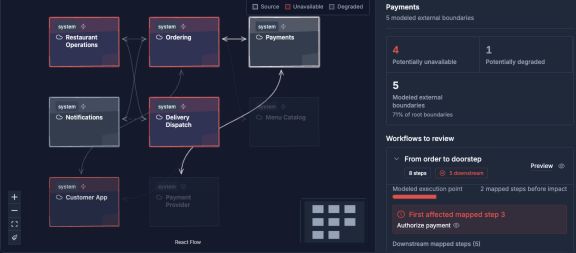
Read the affected workflow and mapped step, rather than treating every connection as a confirmed outage.
Open image separatelyContinue to Explain the finding, then choose Open the architecture note. Read What a payment disruption could affect and its embedded workflow.
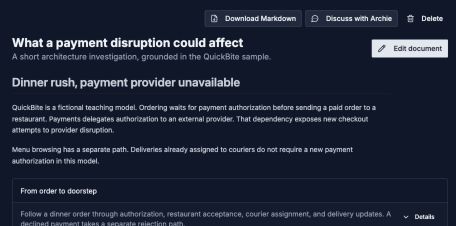
The document connects a plain-language conclusion to the model evidence.
Open image separatelyYour result: you can explain why a new order needs payment authorization, show the step where it happens, and distinguish a modeled dependency from a measured outage. The model does not predict outage duration or prove that every delivery already underway stops.
Continue when you are ready
If the guide cannot continue, open its evidence link and check the selected sample version. See tour troubleshooting.