Generating View Documentation
Create and refine architecture documentation from versioned project evidence
This guide creates documentation for one Architecture View. Use Architecture Documents when the narrative should be canonical and reusable across Views.
Result: reviewed View documentation ready for a reader preview. You need an existing View, edit permission, and an available AI configuration or managed credits for generation. You can write the narrative manually without generation.
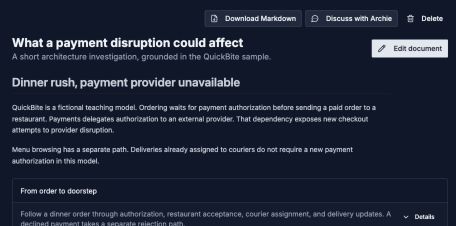
A useful document starts with the reader’s question and keeps the evidence close to the explanation.
Open image separatelyPrepare The Evidence
Before generating:
- Confirm the selected working architecture version.
- Give important Systems and Relationships meaningful descriptions.
- Map at least one relevant Workflow.
- Add Data Model, Behavior, Capability, Deployment, or Context evidence when the topic depends on it.
- Record accepted goals, constraints, decisions, and risks in the Architecture Handbook.
- Approve only trustworthy Project Knowledge memories and insights.
1. Open The View
Go to Documentation → Views, choose the intended View, and open its documentation area. Confirm that the View contains the elements needed for its audience and question.
2. Select Supporting Content
Choose the Workflows and Deployments that belong in this View. Add references to existing Architecture Documents rather than copying reusable content.
3. Configure Generation
Choose Generate Documentation and complete the three stages:
- Content Type — full overview or a focused section
- Customize — audience, technical level, business metrics, visual references, and focus areas
- Generate — verify the choices and start generation
Generate a focused section when most of the document has already been reviewed.
4. Review The Draft
Check every factual statement against the model and source evidence. Pay particular attention to inferred ownership, synchronous versus asynchronous interaction, risk severity, data flow, and runtime behavior.
Edit the Markdown directly and add material that the model cannot infer, such as operational responsibility, regulatory boundaries, rollout constraints, or deliberately rejected alternatives.
5. Regenerate Selectively
When a section is weak:
- Correct the underlying model or Project Knowledge evidence.
- Regenerate only the affected section.
- Preserve reviewed hand-written material elsewhere.
Treat generation as a feedback loop for model quality, not a one-time export.
Add Saved Review Evidence
For a report that combines a proposal with other material, create or edit an Architecture Document and insert Artifact blocks. Use a simulation comparison, a specific proposed workflow, saved analysis, or a checkpoint diff alongside the narrative and live model references. Then reference that document from the View.
This reuses saved evidence without regenerating it. Follow Build An Architecture Change Review for a complete baseline-to-publication example.
Check: the draft explains your chosen question, names the same elements as the View, and distinguishes model facts from assumptions. Save your edits before reviewing a release.
6. Preview And Publish
Open the View’s Publishing area and choose Prepare first release (or Prepare next release), select relevant sections, choose access, theme, and expiration, and inspect Review this release. Use Preview draft to read the selected saved content. Then choose Publish Documentation when it is ready. Follow Publishing and sharing for guest links and subsequent releases.