Mapping Workflows
Connect outcome-oriented runtime journeys to architecture and behavior evidence
Workflows bridge stakeholder outcomes and technical implementation. They are also the dynamic evidence used by Coupling and Blast Radius.
Result: a saved order journey with both an approved and a declined payment path. You need a project with the participating elements and permission to edit its version. To inspect a finished example first, use the QuickBite quickstart.
1. Choose One Outcome
Good candidates include “Place order,” “Onboard customer,” “Publish content,” or “Recover failed payment.” Avoid combining unrelated journeys in one workflow.
Define the trigger, success outcome, criticality, and important failure or compensation paths before opening the canvas.
2. Add Ordered Steps
Each step should describe one meaningful action or decision and map to the architecture element responsible for it.
| Step | Element | Behavior evidence |
|---|---|---|
| Place dinner order | Customer App | Place order command |
| Validate and create order | Order API | Order placed event |
| Authorize payment | Payment API | Payment authorized or Payment declined event |
| Confirm paid order | Order API | Order paid event |
| Reject declined payment | Order API | Order rejected event |
3. Build It In Archflow
- Open Model → Workflows and create the Workflow.
- Open its canvas and add the ordered steps.
- Map every step to its responsible System, Container, Component, or Block.
- Connect steps and model meaningful decisions.
- Save and review the complete path in read mode.
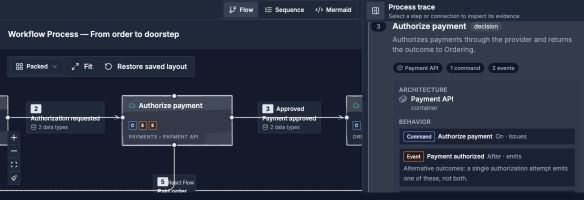
Select a step to connect the journey to its responsible architecture element and linked behavior.
Open image separatelyAdd Approved and Declined transitions from the authorization step. Confirm that a declined payment reaches rejection rather than the restaurant. Use Flow for branches, Sequence for participant interactions, or Mermaid for the generated textual representation.
4. Link Static Relationships
Where a transition uses an existing static Relationship, attach that Relationship. If no suitable Relationship exists, decide whether the static model is incomplete or the transition represents behavior inside one boundary.
5. Link Behavior
Connect important steps to Behavior Model nodes. Capture whether the linked item occurs before, during, or after the step and add a relation note when necessary.
Check: select a step and a transition in read mode. The process trace should show the intended owner and supporting evidence. A missing link is a modeling gap to review, not proof that the interaction cannot happen.
6. Review Analysis
- Coupling reveals workflow co-activity without matching static intent.
- Blast Radius shows journeys likely to degrade when an element fails.
- Explorer traffic simulation animates the simplified path under chosen assumptions.
These tools depend on the quality and scope of the workflow. A broad “everything happens” workflow creates noisy evidence.
7. Use It In Documentation
Select relevant Workflows in a View's documentation area and include them in publication. Keep implementation minutiae out of the stakeholder journey; use Behavior Model or Architecture Documents for deeper detail.