Building A C4 Architecture View
Model a hierarchy once, then create focused context, container, and component Views
Archflow models the architecture hierarchy separately from its visual Views. Create canonical elements first, then use Documentation → Views to tell a specific C4 story.
Result: one context View and, only if useful, a separate container View. You need permission to edit the selected project version. Start with Your first project if your model is empty.
Hierarchy
| Archflow level | Typical C4 use |
|---|---|
| System | Software system or major external system |
| Container | Deployable application, service, data store, or runtime boundary |
| Component | Major responsibility within a container |
| Block | Optional deeper decomposition when it materially helps review |
People or external actors can be represented according to the project's modeling convention, but keep the distinction from owned software clear in names and descriptions.
1. Model The Context
Under Model → Systems, create the system of interest and important external dependencies. Under Model → Relationships, declare the interactions that cross the system boundary.
Create a View named for the audience and purpose, such as “Commerce system context,” and include only those elements.
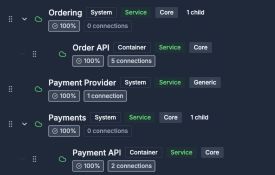
A System describes the boundary. A Container inside it describes a deployable responsibility.
Open image separately2. Decompose Into Containers
Create Containers beneath the owned System. Examples include a web application, API, worker, database, search index, or broker. Add Relationships between them and create a separate container View.
Do not place implementation classes at this level. A Container should represent a meaningful runtime or deployable boundary.
3. Add Components Where Needed
Choose one Container whose internal responsibilities matter to the current review. Create Components beneath it, connect them, and make a focused component View.
Use Blocks only when deeper decomposition answers a concrete ownership, risk, data, or change question.
Check: reopening the saved View shows the same elements and arrangement. A Container is nested beneath its System in the model, rather than duplicated as an unrelated System.
4. Add Behavioral And Runtime Evidence
- Map critical journeys under Model → Workflows.
- Add commands and events in the Behavior Model when sequence alone is insufficient.
- Record logical ownership in the Data Model.
- Create a Deployment for runtime topology.
A C4 View becomes more useful when its static structure links to these canonical evidence surfaces.
Layout Guidance
- Keep one purpose per View.
- Put owned scope and external scope in visually distinct regions.
- Prefer a consistent flow direction.
- Minimize edge crossings and long labels.
- Use read mode to review the result without accidental editing.
- Explain important boundaries in View documentation or a referenced Architecture Document.