Deployment Views
C4 model deployment diagrams with infrastructure visualization
Deployment views let you model how your software systems are deployed onto infrastructure. Following the C4 model's deployment diagram concept, you can visualize servers, containers, cloud services, and their relationships.
Overview
Deployment views answer the question: "Where does everything run?" They show:
- Which infrastructure hosts each system
- How infrastructure components connect
- Environment configurations (production, staging, development)
- Cloud provider details (AWS, Azure, GCP, on-premise)
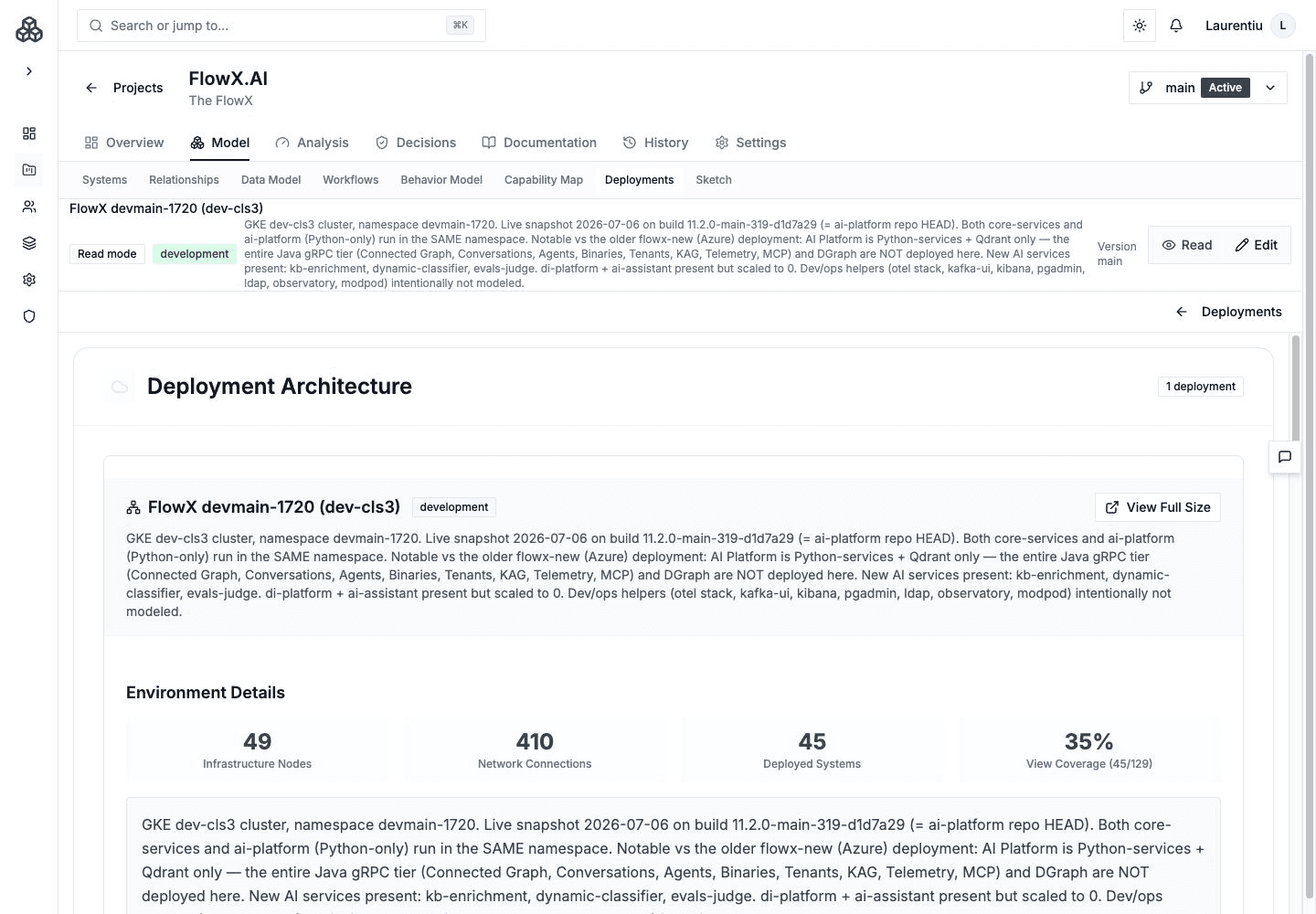
Deployments Page
Navigate to Deployments in the project sidebar to see all deployment configurations. Each deployment card shows its name, environment type, and provider.
Creating a Deployment View
- Navigate to your project's Deployments section
- Click New Deployment and provide a name
- Select the environment type (production, staging, development)
- Choose the cloud provider or mark as on-premise
You can also access the deployment canvas from a diagram view by clicking the Infrastructure tab.
Deployment Canvas
The deployment canvas uses a two-tab layout for modeling infrastructure:
Infrastructure Tab
The Infrastructure tab is where you build and arrange deployment nodes:
- Add infrastructure nodes representing cloud regions, Kubernetes clusters, VMs, managed services, load balancers, and more
- Nest nodes to represent containment (e.g., AWS Region → EKS Cluster → API Pod)
- Auto-Connect --- Let Archflow analyze your system relationships and suggest infrastructure connections. The engine dynamically recalculates edges when you move nodes.
Systems Tab
The Systems tab lets you assign architecture systems to deployment nodes:
- Drag systems onto deployment nodes to indicate where they're deployed
- View which systems are assigned to each infrastructure node
- Systems with resource requirements show their CPU, memory, and storage needs
Capacity Planning
When systems have resource requirements defined, the deployment canvas provides capacity metrics:
- Total CPU, memory, and storage consumed per deployment node
- Aggregated resource consumption across the deployment
- Helps with infrastructure sizing decisions and cost estimation
Nesting
Nodes can be nested to represent containment. For example:
AWS Region (us-east-1)
└── EKS Cluster
├── API Pod
├── Worker Pod
└── Redis SidecarEnvironment Badges
Each deployment displays color-coded environment badges:
- Production --- Highlighted for live systems
- Staging --- Pre-production testing
- Development --- Development and integration
Deployment Detail Page
Click a deployment to open its detail page, where you can:
- Edit deployment name, environment, and provider
- Open the deployment canvas for visual editing
- View all deployment nodes and their relationships
- See which systems are deployed
Deployment Selection for Documentation
When creating documentation from a diagram view's Documentation tab, you can select which deployments to include:
- Open the Infrastructure tab to choose deployments
- Get AI recommendations based on system coverage (prioritizing ≥80% coverage and production environments)
- See coverage metrics showing what percentage of your view's systems are deployed
- Selections are saved per diagram view with auto-save (1-second debounce)
Environment Management
Track deployments across environments:
| Environment | Purpose |
|---|---|
| Production | Live systems serving real users |
| Staging | Pre-production testing environment |
| Development | Development and integration testing |
Archflow provides environment balance recommendations and coverage analysis across your deployment configurations.
Infrastructure Intelligence
The deployment analysis system provides:
- Coverage Analysis --- Which systems have deployment configurations
- Complexity Assessment --- How complex your infrastructure is
- Provider Distribution --- Breakdown by cloud provider (AWS, Azure, GCP, on-premise)
- Optimization Recommendations --- Suggestions for infrastructure improvements