Workspace And Projects
Open projects, groups, architecture cards, and account settings
The global workspace is the entry point for architecture work across projects.
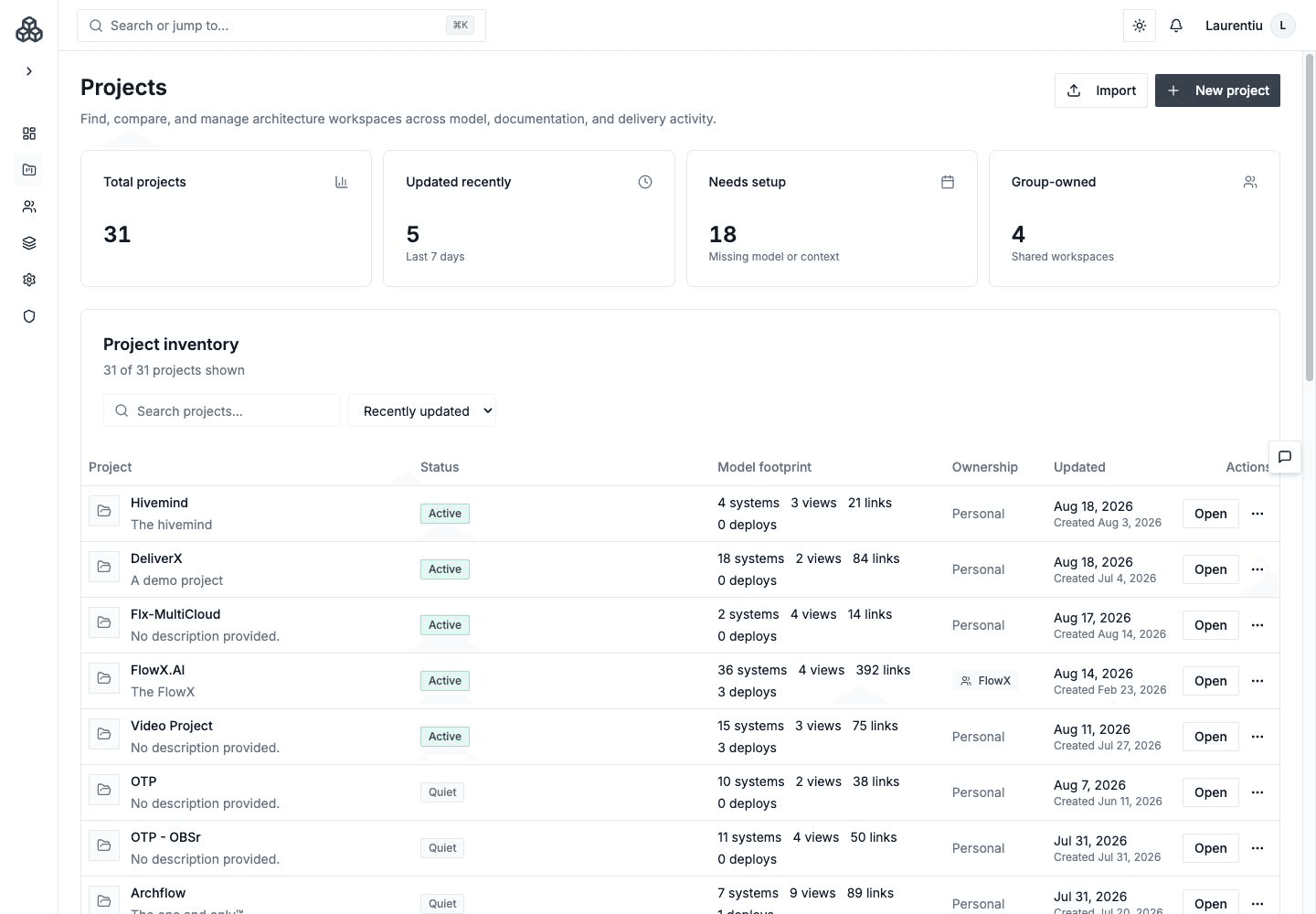
Global Navigation
| Area | Purpose |
|---|---|
| Workspace | Return to your personal architecture workspace |
| Projects | Create, open, import, and resume projects you can access |
| Explore Archflow | Learn through the guided QuickBite sample and revisit any chapter |
| Groups | Manage team membership and shared project access |
| Architecture Cards | Browse reusable architecture patterns and learning material |
| Settings | Configure account, appearance, Archie and AI, usage, billing, and developer access |
Opening a project moves into the seven-area project workspace: Overview, Model, Analysis, Decisions, Documentation, History, and Settings.
Start Or Resume Work
An empty Workspace offers Explore QuickBite and Create project. The guided sample starts with a short workflow, dependency, and documentation investigation; you can start your own project directly or return to the guide later.
Use Explore Archflow With QuickBite for the chapter flow, or open an existing project to resume architecture work.
Read Project Cards
Workspace and project cards show a topology preview, model counts for Elements, Views, Links, and Deploys, ownership, and recent activity. Open a project to inspect the evidence behind that overview.
A loading or unavailable preview does not mean that the project has no model. Activity labels describe recent updates; they are not architecture risk scores.
Archie
Archie is available from the assistant control. Its context and available actions depend on the current page, active project, selected version, and focused artifact. Review proposed changes before applying them.
Project Access
Projects can be owned directly, shared with individual users, or made available through groups. Your role determines whether a surface is editable or read-only.