Systems And Architecture Elements
Maintain the canonical hierarchy, ownership, evidence, and implementation context
Systems are the backbone of an Archflow model. Open Model → Systems to manage the canonical element hierarchy for the selected version.
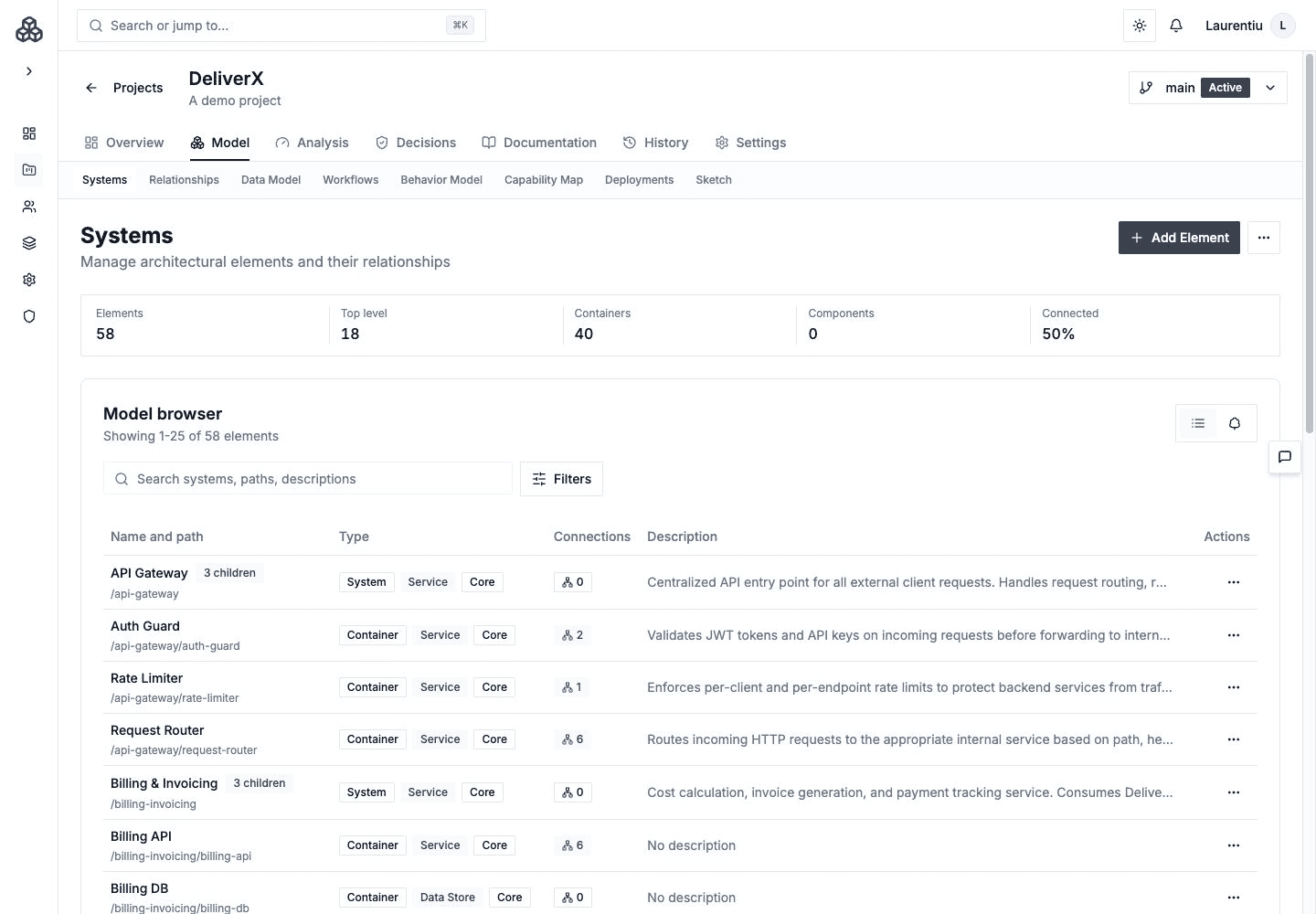
Hierarchy
Archflow supports System → Container → Component → Block, with Blocks available for deeper decomposition when it answers a real architecture question.
Use the shallowest hierarchy that communicates the design. A source directory tree is rarely a useful architecture hierarchy by itself.
Element Evidence
Capture:
- Human-readable name and description
- Parent and architecture level
- Domain role and technology classification
- Source, module, package, or repository evidence
- Resource requirements and deployment context
- Relationships and workflow participation
- Behavior, capability, and Data Model context
- Architecture profile and documentation
| Prefer as a name | Keep as implementation evidence |
|---|---|
| Checkout API | apps/checkout-api |
| Inventory Service | services/inventory |
| Event Broker | infra/kafka |
Catalog And Tree
Use the catalog to filter and compare model inventory. Use the hierarchy view to inspect containment and reparent elements. Reparenting changes the meaning of scopes used by analysis, Data Model roll-ups, Views, and publication, so review downstream context afterward.
Imported elements can be read-only because their source of truth belongs to another project. Resync them through the import workflow rather than recreating them locally.
Save System Documentation
Open a system's Documentation tab to edit Purpose & context, Responsibilities, Architecture & rationale, API contracts, and Operational notes. Use the section's Add or Edit action and select Save for that section.
Unsaved text is recovered within the same browser tab when storage is available. Recovery is not a server save or a shared draft: save each section before closing the tab. If a save fails, the draft remains available to retry. Saving documentation updates the model's documentation; publishing remains a separate action.
Saved dependency notes are authored references. Use View relationships to inspect the current relationship model.
Import An API Specification
Under API contracts, choose Import specification. Import OpenAPI or Swagger from a URL, a JSON or YAML File, or pasted text. URL import runs in the browser, so the URL must be reachable and permit the browser request; a local file or pasted specification is useful for private endpoints.
A successful import saves the specification and lists its endpoints. Use Replace specification to update it; the saved specification remains available until the replacement succeeds. Remove specification asks for confirmation and preserves the written API notes.
Review Questions
- Does every element have a clear responsibility and owner?
- Is the hierarchy architectural rather than organizational or filesystem-driven?
- Are code paths evidence rather than the public name?
- Are resource requirements and data ownership attached at the correct level?
- Would moving this element change analysis or documentation scope?