Archflow
Features

Diagrams

Interactive architecture diagrams with React Flow canvas

Diagrams are the core visualization tool in Archflow. Each diagram provides an interactive canvas where you can arrange systems, draw connections, and create clear views of your architecture.

Overview

Archflow diagrams use React Flow to provide a smooth, interactive canvas experience:

  • Drag and drop systems onto the canvas
  • Smart edge routing keeps connection lines clean and readable
  • Zoom and pan to navigate large architectures
  • Auto-layout options for quick arrangement
  • Multiple views per project for different perspectives

View Tabs

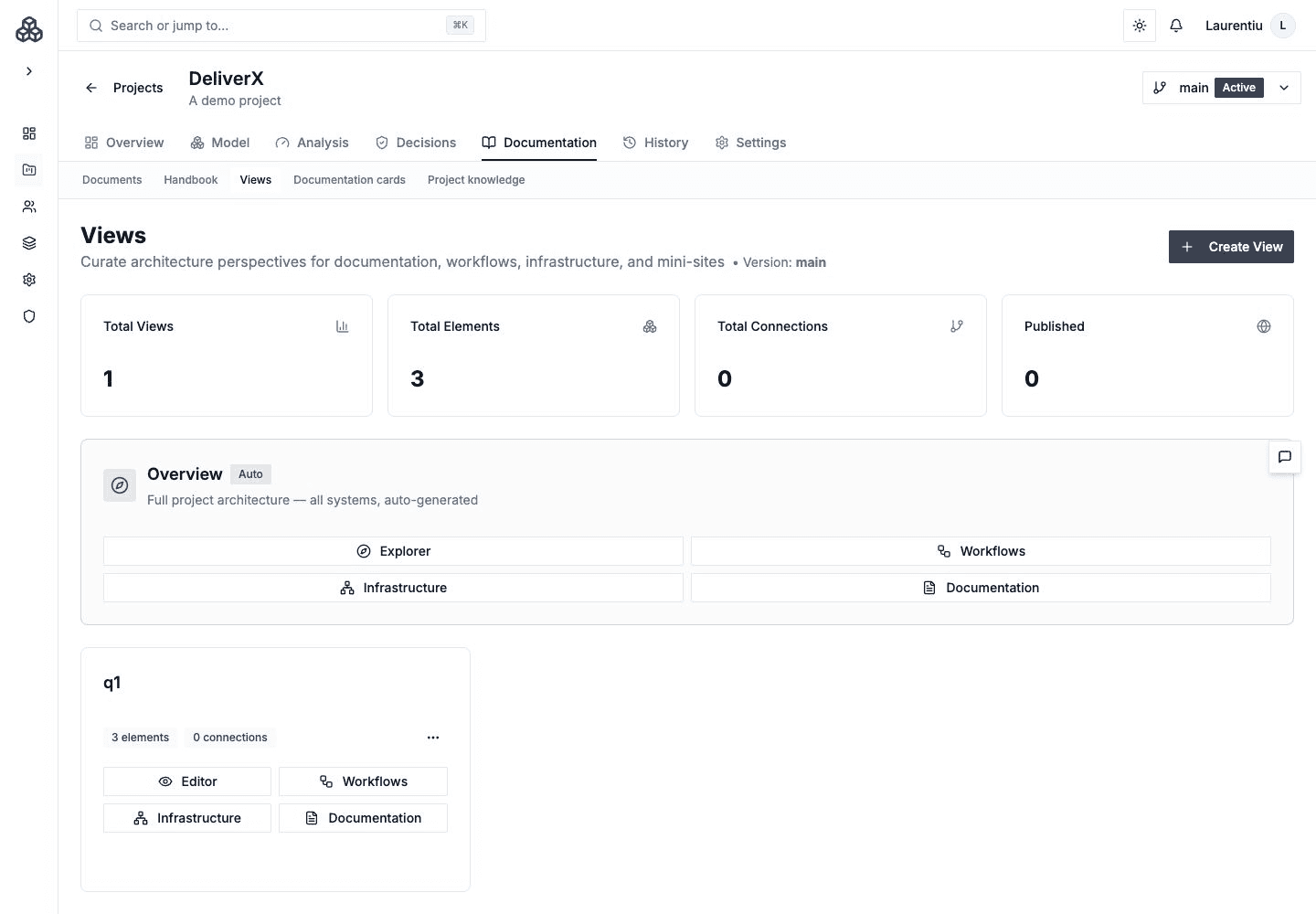
Each diagram view has multiple tabs accessible from the view page:

TabDescription
EditorThe main canvas for arranging systems and connections
WorkflowsSelect and manage business workflows linked to this view
InfrastructureC4 deployment canvas for modeling infrastructure
DocumentationGenerate, edit, and publish AI-powered documentation
PreviewPreview published documentation as readers will see it

See the Diagram Editor page for detailed information about the canvas interface.

Diagram Types

Following the C4 model, you can create different levels of diagrams:

Context Diagrams

Show your software system in the context of its environment --- the users, external systems, and integrations it interacts with.

Container Diagrams

Zoom into a software system to show its internal containers: web applications, APIs, databases, message queues, and other runtime components.

Component Diagrams

Further decompose a container into its internal components, showing how they interact to fulfill the container's responsibilities.

Overview Diagrams

A special read-only diagram type that renders an auto-layout Exploration Canvas showing your entire architecture at a glance. Overview diagrams are useful for stakeholder presentations and quick orientation. They use automatic layout algorithms (via Elkjs) so you don't need to manually position anything.

Canvas Features

Node Positioning

Systems placed on the canvas can be freely positioned. Archflow saves exact positions so your layout is preserved across sessions.

Edge Routing

Connections between systems use intelligent edge routing with magic positioning that:

  • Automatically calculates optimal anchor points based on relative node positions
  • Avoids overlapping with system nodes
  • Supports curved and straight line styles
  • Updates dynamically when you move systems

Selection and Editing

Click any system or connection to view and edit its details in a side panel. Multi-select with shift-click to move groups of elements together.

Viewport State

Your zoom level and pan position are saved with each diagram, so you return to exactly where you left off.

View Statistics

The Views page shows summary statistics for your project:

StatDescription
Total ViewsNumber of diagram views in the project
Total ElementsSystems placed across all views
Total ConnectionsConnections visible across views
PublishedViews with published documentation

Working with Diagrams

Creating a Diagram

From the Views page in your project sidebar, click Create Diagram and provide a name. Each diagram is an independent view of your project's systems and connections.

Adding Systems to a Diagram

Systems exist at the project level and can appear in multiple diagrams. On the Editor canvas, click Add to View to open the system panel, then select systems to place on the canvas. You can also create new systems directly from the Systems page using the Add Element button.

Organizing Multiple Views

Use multiple diagrams to show different aspects of your architecture:

  • A high-level context view for stakeholders
  • Detailed container views for development teams
  • Component views for specific subsystems

Next Steps

On this page