Architecture View Editor
Arrange canonical architecture elements into a focused visual review
Open a View and enter edit mode to choose and arrange the elements needed for its purpose.
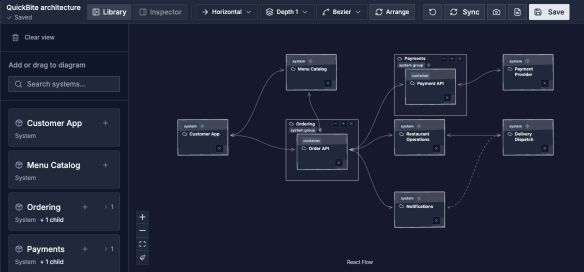
A View keeps an audience-specific presentation of existing model resources. Choose Save before leaving.
Open image separatelyEdit Safely
The editor separates the View's presentation from the underlying model. Moving a node changes its placement in this View. Editing a selected System or Relationship changes the canonical resource used elsewhere.
Check the selected working version and read/edit mode before making either kind of change.
Canvas Workflow
- Define the View's audience and review question.
- Add only the necessary Systems and hierarchy depth.
- Reveal or create the Relationships needed for the story.
- Arrange the canvas or use auto-layout as a starting point.
- Inspect selected resources in the detail panel.
- Choose Save and wait for successful save feedback before navigating away. Layout changes are not automatically saved.
- Open documentation to add narrative, resource sections, and reusable Documents.
Use pan, zoom, minimap, selection, and inspector controls consistently with the other Archflow workbenches. Keep labels legible and avoid overlapping edges or unexplained crossings.
Manual Placement And Auto-Layout
Drag nodes to arrange the View, then save. Saved node positions are restored when the View is reopened. Use Restore saved view to return to the last saved arrangement.
Auto-layout is an explicit action in the View editor. Choose topology or packed layout, direction, and expansion depth, then choose Arrange when you want to rearrange the View. You can also reveal selected children of an element instead of expanding every branch of a large hierarchy.
Unlike the Architecture Canvas's browser-local arrangement, a View's saved presentation belongs to that View and supports its documentation experience.
Read Mode
Return to read mode when presenting or reviewing. This reduces accidental editing while retaining selection and inspection.