Workflows
Map named runtime journeys across architecture elements
Workflows explain how a business or technical outcome moves through the architecture. Open Model → Workflows.
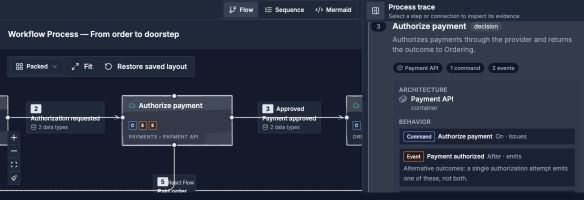
Start with one outcome and inspect the steps that establish it.
Open image separatelyWorkflow Evidence
Capture:
- Outcome-oriented name and description
- Category, criticality, and trigger
- Ordered steps mapped to architecture elements
- Transitions and decision paths
- Static Relationships implementing supported transitions
- Behavior Model nodes linked to important steps
- Canvas layout for review and publication
Static Relationships express intended structure. Workflow participation supplies the dynamic co-activity evidence used by Coupling and contributes to Blast Radius.
Behavior Links
Link a workflow step to the command, event, policy, state, question, or read model that explains what happens at that point. Add timing and relation notes when sequence alone is insufficient.
This preserves two useful levels: the workflow remains understandable to stakeholders, while the Behavior Model captures lower-level semantics.
Data On Workflow Transitions
Map a transition to an architectural Relationship when it represents that interaction. Its logical data types then come from the Relationship's shared data contract. Use Edit shared data to inspect or change that contract; the change applies to every transition linked to the same Relationship.
An unlinked transition can hold local data selections. Expand a mapped entity to inspect its shape, and follow usage links from the Data Model back to the transition that carries it.
Diagram And Process Trace
Read-only workflow views pair the diagram with a process trace. Select a step or connection to inspect its evidence, and resize or collapse the trace when the diagram needs more room. Behavior references let you follow a step to its semantic node, while the Behavior Model shows the workflows that use a selected node.
Simulation workflow comparisons additionally provide Left to right, Top to bottom, and Packed layouts for each current/proposed diagram. These are presentation controls for the proposal, not edits to the baseline workflow.
Flow, Sequence, And Mermaid
Use Flow to follow branches and node connections. Sequence reads the same workflow as interactions between participants. Select a step or message to inspect its evidence. These modes do not create separate workflows.
Use Mermaid to inspect the generated diagram source for the selected representation. In read-only viewers, this is an export/read surface, not a second workflow editor. Choose Flow or Sequence to return to the interactive reading.
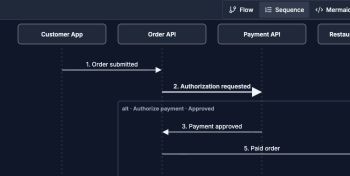
Switch between Flow and Sequence to answer different questions about the same modeled journey.
Open image separatelyThe process trace can be collapsed or resized. Follow a behavior reference to inspect the command or event behind a step; follow a subworkflow to read its nested journey and use the workflow breadcrumb to return.
Review Workflow
- Name the outcome, not an implementation call.
- Add the happy path at the level reviewers need.
- Add meaningful decisions and failure or compensation paths.
- Map every step to the responsible architecture element.
- Link transitions to existing Relationships where they represent the same interaction.
- Add Behavior links for important commands and events.
- Revisit Coupling and Blast Radius.
Workflows are versioned, publishable, available to Archie and MCP, and usable by Explorer's simplified traffic-flow simulation.